
WSUS 3.0 : Connecting, Managing and Moving SUSDB as Internal Database

Sometimes, for example if you are just spiking about WSUS and you don’t want to install any version of SQL Server, you best choice would be the Internal Database option. But what happens if you change your mind later and you want to change the location of that internal database to a different drive? Or simply executing other tasks on the database, like generating a backup or shrinking?
Fortunately there’s a way to connect to that DB without having to re install WSUS:
Using SQL Server Management Studio
Note: If you don’t have it, you can download the stand alone tool for SQL 2005 version: Microsoft SQL Server Management Studio Express; or you can download SQL Server 2008 Express Edition (the latest of the free SQL Server versions, includes among the tools the SQL Server 2008 Management Studio Express).
1. Open SQL Server Management Studio. In my case, I’m using SQL Server 2008 Express Edition. 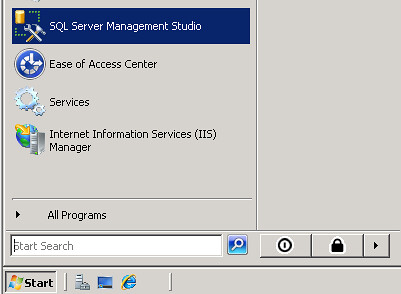
2. Using the connection window, connect to this instance:
\\.\pipe\MSSQL$MICROSOFT##SSEE\sql\query 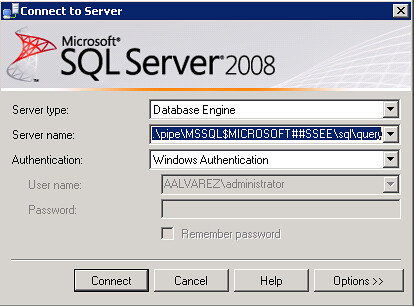
3. You should see now in Object Explorer the database instance connection. Right-click on SUSDB –> Tasks –> Detach 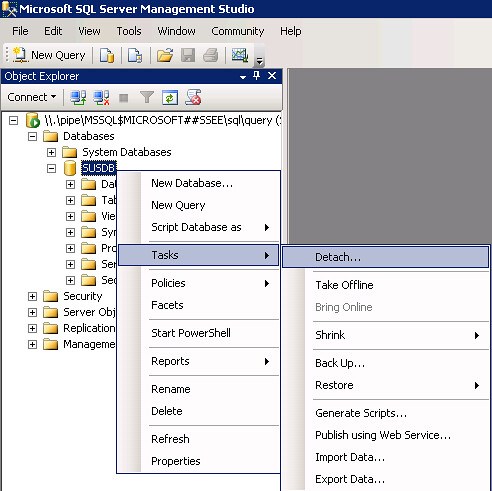
4. Check the options for “Drop Connections” to remove all active connections to that DB. Click OK. 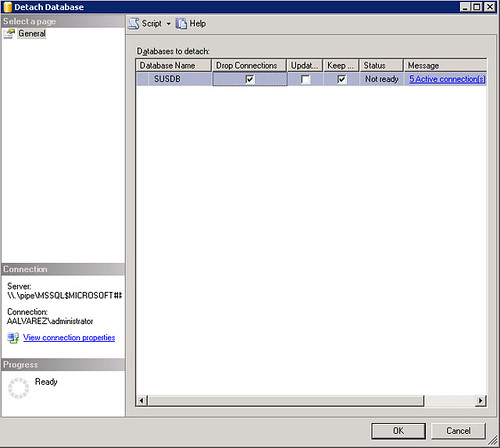
5. A message saying that the DB is not accessible should appear. Click OK. 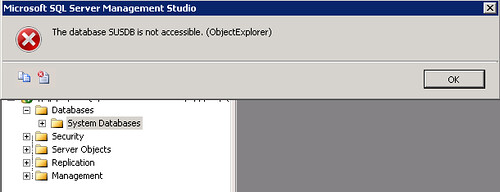
6. Move the database files to the new drive or location where you are planning to keep it. 
7. Back to the instance connection. Right-click Databases –> Attach. 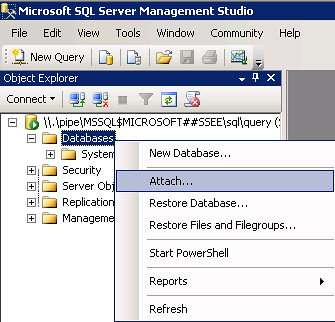
8. Click on “Add” and select the .mdf folder where you relocated the database. 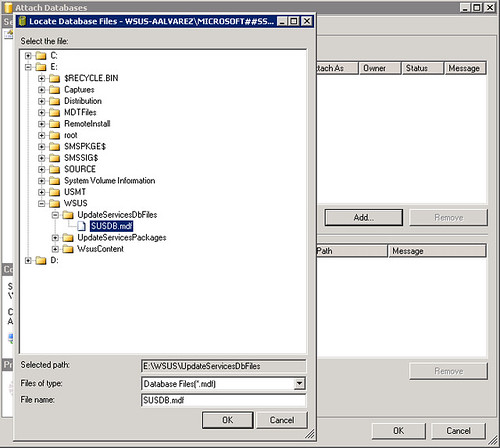
9. Click OK to attach it again. 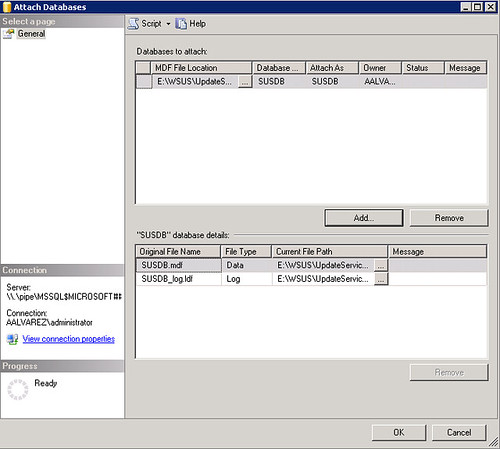
10. Your database should be working now on the new location. 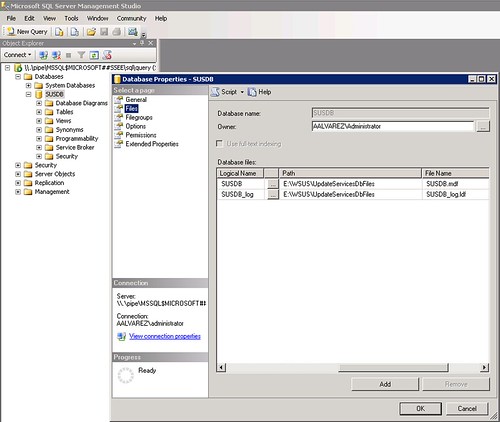
Using SQL functions / SQLCMD
Note: If you want to use SQLCMD command line utility you can download it from the Microsoft SQL Server 2008 Feature Pack, where you’ll find plenty of SQL utilities.
1. Run “cmd” and locate it where the sqlcmd executable is. Usually: %Program Files%\Microsoft SQL Server\90\Tools\binn.
2. Type in “sqlcmd -S \\.\pipe\mssql$microsoft##ssee\sql\query –E” press Enter.
3. You are now connected to Internal Database instance. Type “EXEC sp_detach_db @dbname = ‘SUSDB’”.
4. On the next query line, type “GO” and press Enter.
5. Exit the SQLCMD utility. Type “EXIT” and then type “GO”.
6. Move the database files to the new file location.
7. Reconnect to the Internal Database instance: “sqlcmd -S \\.\pipe\mssql$microsoft##ssee\sql\query –E”.
8. Attach it again: “EXEC sp_attach_db @dbname = ‘SUSDB’, @filename1 = ‘<path>SUSDB.mdf’, @filename2 = ‘<path>SUSDB_log.ldf’”.
9. Exit the SQLCMD utility. Type “EXIT” and then type “GO”.
Even though you would now be knowing how to access the internal WSUS database, I would recommend to migrate this internal database to a SQL Server database if you have the chance, and remember that you can use the light and free version of Microsoft database engine: SQL Server Express Edition (2005 or the 2008 version).
 Loading. . .
╔════════════════╗
║████████████ 99.99%
╚════════════════╝
Loading. . .
╔════════════════╗
║████████████ 99.99%
╚════════════════╝

